
Reuse a saved anime character in one short video scene
Follow a real UI run with Kiko: select a saved character, review one scene, generate a 10-second clip, and check the reference in the saved result.
What this walkthrough covers
Use a character you already saved in C2Anime as the reference for one short anime scene. Our prerequisite is Kiko the Sky Mechanic, created and saved in a separate September 14 run. This walkthrough began on September 15, 2026. Kiko is an account-owned library asset; use your own saved character to follow along.
The result is one 10.08-second video at 1280×720. The production workflow, saved result, visual consistency, desktop/mobile playback, and anonymous media access have been checked. A human viewer also confirmed that the video has audible sound.
Step 1 — Select your saved character

Open Create, sign in, and click Character under the composer. In My, search Kiko, select its card, then click Confirm. The composer now shows a Kiko chip and 1 character selected. The reference image is the pre-existing saved image, not a new generation in this run.
Step 2 — Enter the actual brief

The exact text submitted was:
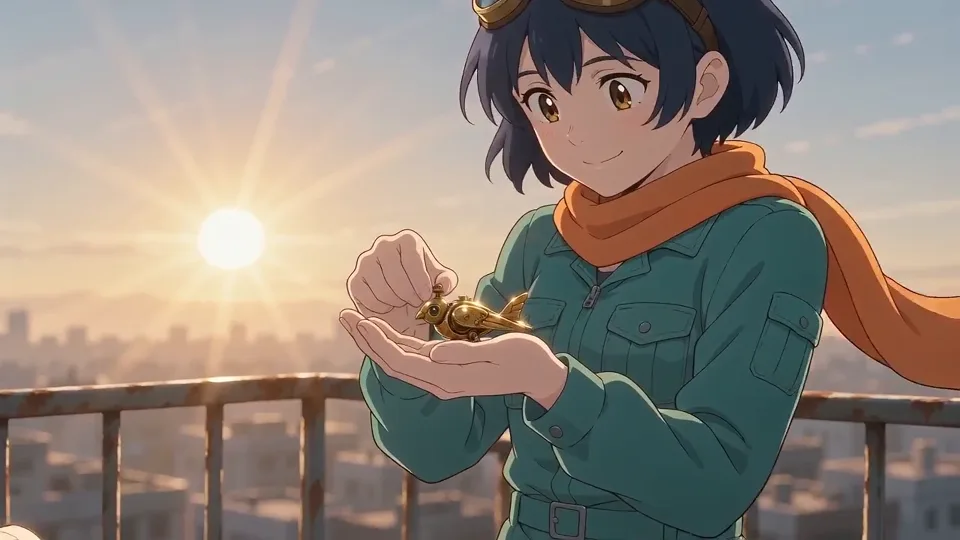
Create one short scene using the selected library character Kiko the Sky Mechanic. In a quiet rooftop workshop at sunrise, Kiko holds a small brass wind-up bird on one open palm and smiles at it. Keep Kiko’s navy-blue hair, amber eyes, teal mechanic jumpsuit, orange scarf, brass goggles on the head, and brown boots consistent with the selected reference. One character, one location, one shot, no dialogue, no narration, no on-screen text. Japanese anime style. Prepare only one scene image for review; do not generate video.
This was the original request, including its request for an image-only review. The current workflow offered video generation rather than a standalone scene-image action. We subsequently clicked Generate Videos to obtain the smallest supported visual result for testing the character reference.
Step 3 — Review settings, then create the scene plan

We kept Japanese Anime, selected 16:9 Landscape and English, chose Custom → 4 scenes (the lowest numbered Custom choice), set Opening & ending → Off, and selected Show, don’t tell. Cinematic pacing and dialogue behavior remained selected. No model-selection control was visible in the settings we used, so this tutorial does not name a model.
Click Create Scenes. We clicked Pause during outline preparation to review the intermediate steps. The actual plan contained one scene, despite the four-scene Custom setting. Treat the request, selected settings, and resulting plan as separate facts; this example does not promise that every brief will produce one scene.
Step 4 — Check the actual scene and reference

The plan was titled Kiko and the Brass Bird. Scene 1 was EXTERIOR · ROOFTOP WORKSHOP — SUNRISE, a medium shot planned for 10 seconds. It described Kiko winding the bird and watching its wings move. The Prompts view showed Kiko among the selected scene references, no narration, no dialogue, and timing of 0 seconds opening + 10 seconds story + 0 seconds ending.
Click Continue to prepare the cast and scene. The Cast & Scenes panel showed the original saved Kiko image. Check your reference before spending credits; merely seeing a selected character is not evidence that a generated clip has preserved its identity.
Step 5 — Generate the single scene

The chat showed 1 scenes are ready and an estimate of approximately 10 credits, with 819 available. We clicked Generate Videos once. During rendering, the balance became 809: a visible difference of 10 credits. No new plan or subscription was purchased. The system compiled a 10-second continuous camera move and a video prompt that mapped @Image1 to Kiko the Sky Mechanic. Its audio direction requested morning wind and clockwork sound effects.
Step 6 — Open, replay, and find the saved result

Once the scene finished, C2Anime assembled the output and displayed Your anime is ready. We clicked Watch, reopened the resulting page in another browser, and replayed the clip from its start to the 10.08-second end. The desktop result page showed Visibility: Public. We used its Share control; the verified public viewing address is linked below.
Watch Kiko and the Brass Bird, or return through My Animations. Your own account needs sign-in for its library; the example's viewing page and media load without an authenticated request.
Watch the actual result
Kiko and the Brass Bird — actual single-scene video generated through C2Anime. · Open video
Download the original result video. This is the original product output.
What the result shows
- One continuous rooftop scene with a slow camera move toward Kiko and the brass bird.
- Kiko retains the reference's navy hair, brass goggles, orange scarf, teal workwear, and amber eyes. The shot is framed above the boots, so it does not verify boot continuity.
- Kiko winds the bird and its wings move; the ending holds a close view of the bird and Kiko's delighted expression.
- The output is 16:9, 1280×720, with a media duration of 10.08 seconds. The scene plan requested 10 seconds. No added title card, caption, or extra character is visible in the inspected frames.
- The file contains a stereo AAC audio track and decodes successfully. A human viewer confirmed audible sound before publication.
Desktop and phone checks

We operated the creation flow at 952×930, then reopened the saved result in Chrome at 1440×1000 and 390×844. In both result views, the video played from the beginning to its end. The phone result page showed the player and Download video control without horizontal page overflow. We did not submit a second generation for mobile testing.
The phone creation workspace had a separate layout problem: the Scene Videos panel clipped right-side content and overlapped the lower chat controls. That portion failed the layout check; use the desktop workspace for the creation steps in this walkthrough. The saved viewing page passed the playback/layout checks described above. Some result-page text still uses book/page terminology; this deliverable is one video scene, not a picture book.
The run used 10 credits based on the visible 819 → 809 balance change. Generation took longer than the UI's usual estimate; we waited for the existing task rather than submitting another. Screenshots are real UI captures cropped to omit unrelated account/history areas.
A first like from an active subscriber gives a community author 1 credit. Likes are permanent; self-likes and repeat rewards are excluded.