
Change a saved character’s scarf color with Describe
Edit one accessory color on an existing character reference, inspect the real before-and-after result, and verify that the saved picture survives a reload. Includes the exact prompt, one-credit cost and framing limitation.
What this walkthrough changes
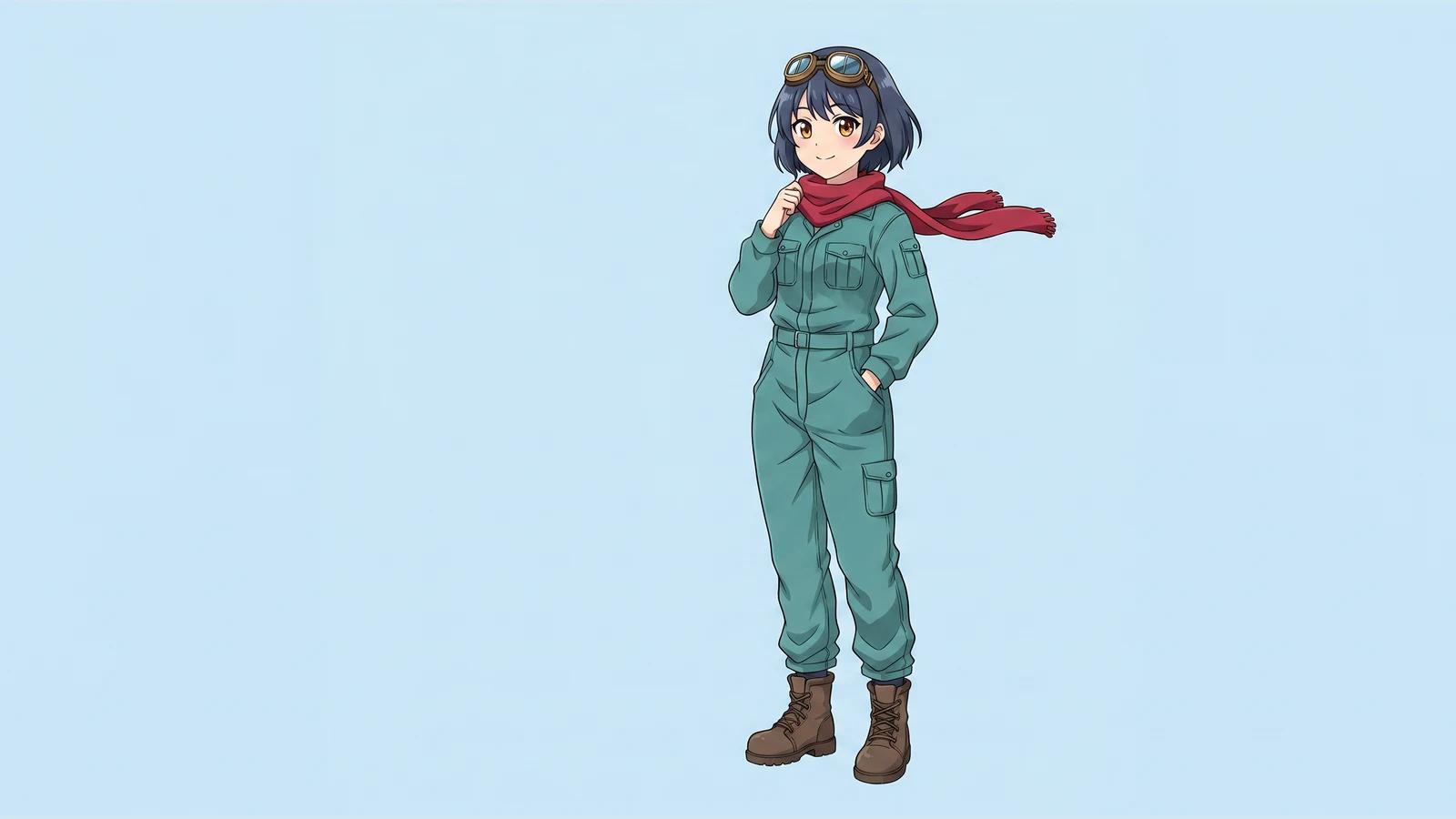
Change one accessory color on a saved character reference, then check the saved picture after a reload. In this real September 25, 2026 run, Kiko's orange scarf became deep red. The character's full body, teal jumpsuit, navy hair, goggles and brown boots remain visible.
This is a reference-image edit inside an existing story workspace. The character, story and earlier video were pre-existing assets. We did not regenerate a scene or video, and this walkthrough does not demonstrate that the new scarf appears in an animation or updates a separate Character Library entry.
Before you start
Sign in at Create and open your existing story from Show story history. We used Kiko and the Brass Bird, then selected Characters and Kiko the Sky Mechanic. Use your own saved character when following along.
Here is the original saved reference used as the input, with its orange scarf. It was not generated for this tutorial.

Step 1 — Open the portrait editor and choose Describe

Click the portrait's edit control (its tooltip begins Edit this portrait) and select Describe. Keep Edit selected. In this UI, Edit changes the current picture; Redraw instead draws the saved description again. We used Edit on this same reference image.
The editor displayed Keeps the current composition · 1 credit. There was no image-model selector in this dialog, so we did not select or infer an image model. Video-model controls behind the dialog were unrelated to this operation.
Step 2 — Describe the one change and what should remain

We entered the following exact text and clicked Generate once:
Change only Kiko's orange scarf to a deep crimson-red scarf (#B22234). Keep the same scarf shape and folds. Preserve the character identity, face, navy-blue hair, amber eyes, brass goggles on the head, teal mechanic jumpsuit, brown boots, relaxed standing pose, full-body framing, pale sky-blue background, and the existing Japanese anime linework and cel shading. Do not add or remove any objects, text, or characters.
The color code expresses the requested shade. It is not proof of an exact pixel color in the shaded result. Naming the preserved details makes the intent explicit; it does not guarantee that every detail or the image dimensions will remain identical.
Step 3 — Inspect Updated, then click Done

The dialog first displayed Working on it, then Updated — this is the new picture. We checked the red scarf and the complete character, and clicked Done. There was one edit submission and no retry.
Here is the actual resulting image:

The scarf is visibly deep red. Kiko's pose, hair, goggles, jumpsuit, boots and pale-blue background remain recognizable. However, the input was 1024 × 1024, while the result is 2752 × 1536 with more empty space at the sides. The whole character is retained, but exact framing and aspect ratio were not preserved despite the editor's composition wording. We accepted that limitation for this accessory-color reference and did not pay for another attempt.
Step 4 — Reload and reopen the saved reference

Reload the page, return to Characters, select the same character and click its Enlarge preview. Our reopened image still showed the red scarf. The visible balance changed from 825 to 824 credits, confirming a total observed deduction of 1 credit for this run.
Find your result through Create → story history → your story → Characters. This workspace requires sign-in; we do not have a separate public share page for this character edit. The public before/after images and saved-state screenshot above are the evidence for this walkthrough.
Mobile check and limits

We checked the saved result at an actual 1440 × 1000 desktop viewport and closed/reopened the preview at 390 × 844. The full character fit in the mobile preview. The surrounding workspace controls were cramped, and the preview's mode badge covered part of the upper-left background. We did not submit a separate paid edit from mobile or test a physical phone.
Editing a reference picture does not verify changes to existing scene text, saved video prompts or already-rendered clips. In this project the saved scene/video instructions still said orange scarf after the picture edit. If your next goal is a red-scarf video, reconcile those instructions and verify a new render in a separate workflow; that was outside this run.
A first like from an active subscriber gives a community author 1 credit. Likes are permanent; self-likes and repeat rewards are excluded.