
Edit and save your story ending in Outline
Revise one Ending field in a saved story, save it through the Outline editor, and confirm the text survives a reload—with real desktop and narrow-screen screenshots.
What you will change
Save a revised Ending in a story's Outline, then reopen the story to check that the text is still there. This is useful when you want a more precise final story beat before deciding what to create next.
We performed this walkthrough in the live C2Anime interface on September 19, 2026. Our starting asset was Kiko and the Brass Bird, an account-owned story created on September 15. Its character, scenes and existing video were already present. The result of this walkthrough is the saved outline text below. We did not generate a new image or video, and we did not test whether a later generation would follow the new ending.
You need a signed-in C2Anime account and a saved story with an editable outline. Use your own story when following the steps.
Step 1 — Reopen your story and find Ending
Open Create, expand Show story history if the history is hidden, and select your saved story. We selected Kiko and the Brass Bird. Choose Outline in the workspace, then scroll to Story Arc.
Find Ending and click its pencil Edit control. On desktop, the pencil appears when you move over the text. The original ending in our story was:
Kiko watches the bird, ready to let it fly, as the city below begins to stir.

The screenshot shows the original text before this run's change. The completed-story banner belongs to the earlier project; it is not evidence of a new video generated today.
Step 2 — Enter a specific final beat
We wanted the final moment to stay with Kiko and the bird resting in her hand. We replaced only the Ending field with this exact text:
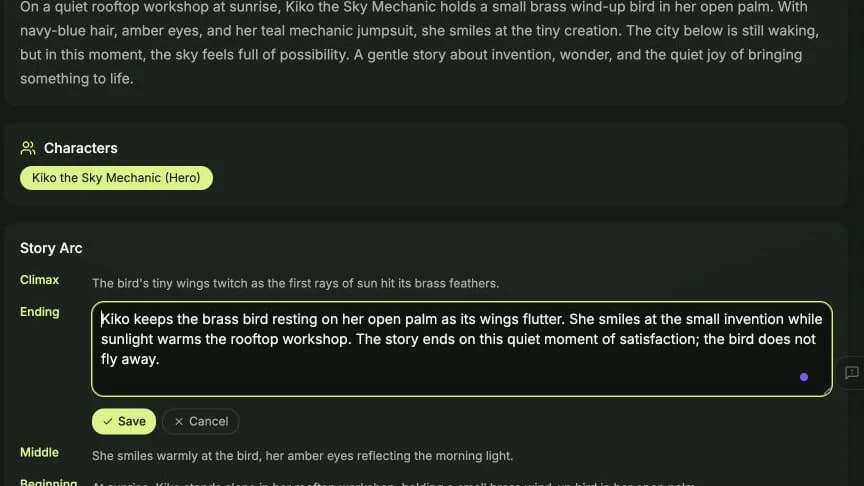
Kiko keeps the brass bird resting on her open palm as its wings flutter. She smiles at the small invention while sunlight warms the rooftop workshop. The story ends on this quiet moment of satisfaction; the bird does not fly away.

The revision gives the ending an observable action, a place and a clear stopping point. For your own story, describe the last beat you want to keep. This field accepts the story text directly; we did not send a chat instruction or use an AI rewrite for this edit.
No model, art style, aspect ratio, shot count or duration was selected for this operation. Those settings were not part of saving this text field. There was no generated-media prompt to report.
Step 3 — Save the field
Click Save below the Ending text box. During our save, the controls briefly became disabled. The field was later displayed as ordinary outline text with the revised ending.

This screenshot was captured after the persistence check in the next step. It shows the stored result, rather than an unsaved text box. Saving an outline field is the completed action in this guide; the earlier rendered video is not presented as an updated result.
Step 4 — Reload and inspect the stored result
Reload the page, choose Outline again and return to Story Arc → Ending. Open Edit once more. We checked the full text and confirmed it matched the exact revision above, including “the bird does not fly away.” We then chose Cancel to close this inspection without making another edit.

You can find your own result later through Create and story history. This private outline editor requires sign-in and does not provide a public page for the text edit. The public screenshots here document our result; an existing video's public page would not prove that its content changed.
A note about the narrow-screen editor
We also inspected the saved Ending and its editor in Chrome at an actual 390 × 844 viewport. Our previously wide workspace initially clipped the canvas. Double-clicking the divider labeled Drag to resize · double-click to reset restored the Ending input and Save/Cancel controls inside the viewport.

The input scrolls vertically to reveal the complete text. The adjacent chat column remains cramped, and the workspace tabs become compact circles. For this walkthrough, desktop is the clearer editing surface. The save itself was performed at 1440 × 1000; the narrow-screen check covered the stored text, editor and controls, not a separate mobile save or a physical phone.
Result and observed cost
The Ending survived a full reload and matched our input exactly. The visible balance was 829 credits before and after, an observed change of 0 credits. No generation, credit purchase or extra story was needed for this outline edit.
All screenshots are from this run. Desktop screenshots are cropped to the relevant workspace, and the cover is a crop of the reopened Ending editor. Only the outline text was verified here; changes to existing scenes, later generated visuals and playback are outside this tutorial's scope.
A first like from an active subscriber gives a community author 1 credit. Likes are permanent; self-likes and repeat rewards are excluded.