
Edit a saved item image background with Describe
Use Describe and Edit on an existing item reference, review a real background correction, and reopen the saved result—with the observed framing limitation explained.
What this walkthrough does
Change the background of an existing item reference through Describe → Edit, then reopen the saved item to verify the result. We performed this workflow in the live C2Anime product on September 22, 2026.
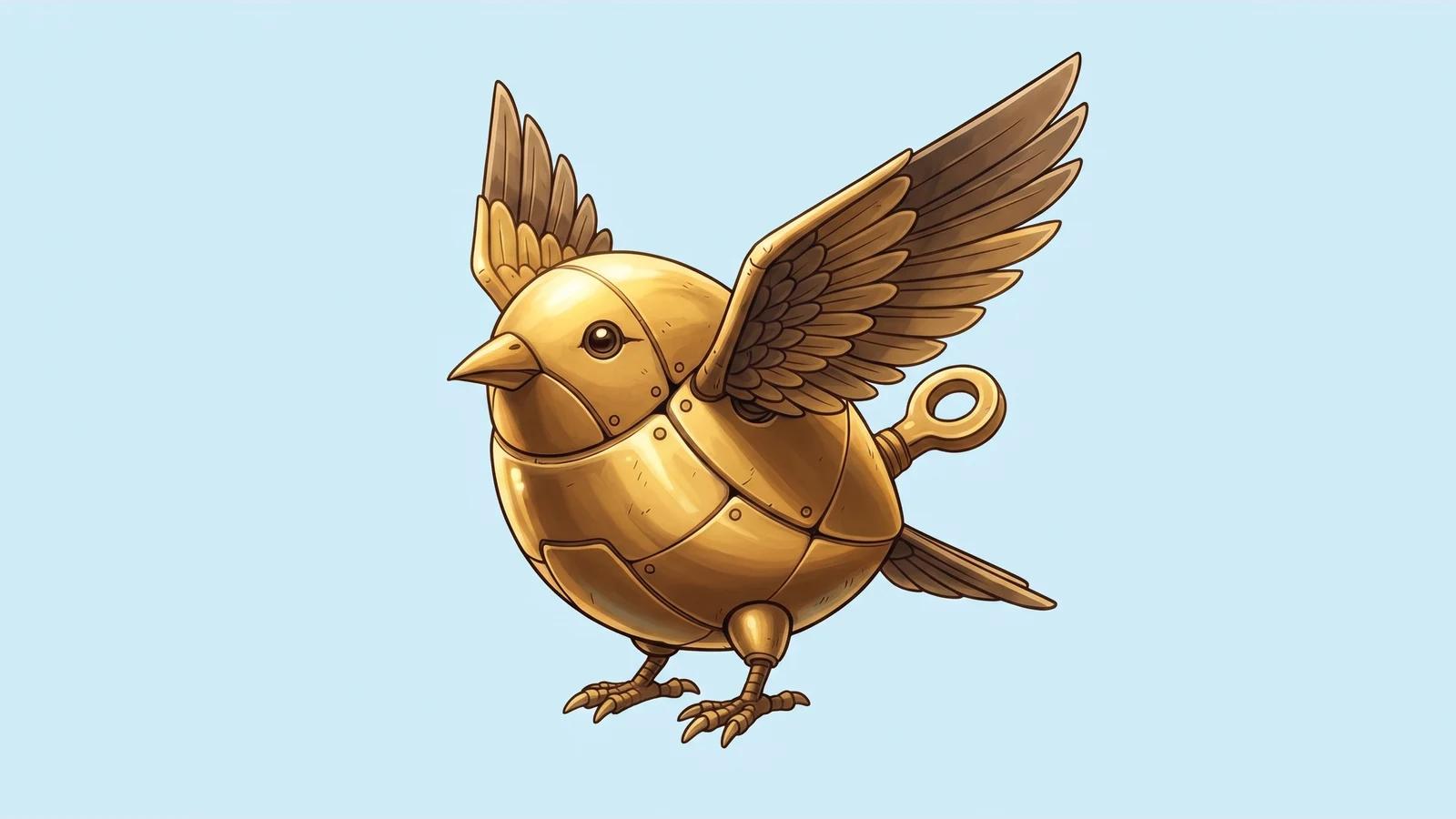
The pale-blue background was achieved. The editor also changed the image from square to wide, so this is a successful background correction with a composition limitation—not a demonstration of pixel-perfect preservation. No scene or video was regenerated.
Before you start
Sign in at C2Anime Create, use Show story history to open your story, and choose Characters. Our prerequisite was the Brass Wind-up Bird item in Kiko and the Brass Bird, saved on September 21. The project and its existing animation were pre-existing assets.
The original item image below is the actual starting image, not a second image generated for a comparison. Its background was near white even though the original item description requested pale sky blue.

Step 1 — Open the existing image and choose Edit
Select Brass Wind-up Bird in Characters, click the portrait-edit button, then choose Describe. Keep Edit selected. In this run the interface described Edit as Keeps the current composition · 1 credit.

This operates on the selected saved image. We did not create another item, upload a replacement, or select Redraw. The edit dialog did not expose a separate image-model or output-size selector. The project's video model, duration and aspect-ratio controls behind the dialog were not changed for this operation.
Step 2 — Describe the change and what should remain

The exact input was:
Change only the plain white background to a uniform pale sky-blue background (#D9EFF7). Keep the same brass wind-up bird, golden metal colors, raised wings, winding key, feet, pose, framing, and Japanese anime linework exactly as they are. Do not add any objects, people, shadows, gradients, or text.
The hex value was part of the written request, not a color-picker setting or a guarantee of exact output color. We did not inspect or supply an internal generation prompt.
Click Generate once. The editor disabled its controls and displayed Working on it — this usually takes 30–60 seconds. Keep this open. The item panel also showed Regenerating image…. We kept the same task open and did not submit again while it was running.
Step 3 — Review the actual update

When the job completed, the editor displayed Updated — this is the new picture. Keep going, or close when you're happy with it. We inspected the image and clicked Done.

The new image has a pale-blue background, a recognizable golden brass bird, raised layered wings, a winding key and two complete feet. No person, extra object or text appeared. The whole bird remains visible.
There is an important limitation: the source was 1024 × 1024, while the edited output was 2752 × 1536. The canvas became wider and the framing changed despite our request and the editor's composition-preservation wording. Fine details are also not guaranteed to be identical. We accepted this result for a background-correction reference and made no second paid submission. If exact framing is essential, inspect it before relying on the result.
Step 4 — Reopen the same saved item
Refresh the project, choose Characters, and select Brass Wind-up Bird again. In our run the new image remained attached to the same named item, with its original description, Item type and Species: object still present.

Click the item's image to open the larger preview. The old image may still appear in earlier chat history; inspect the currently selected item rather than treating a historical chat message as the saved result.
The visible balance was 828 credits before and 827 after refreshing, an observed cost of 1 credit for this run. The header had not yet refreshed its balance immediately after generation. Future prices may differ; check the current UI before submitting.
Step 5 — Check the saved preview on a small screen

We checked the saved result at actual browser viewports of 1440 × 1000 and 390 × 844. The mobile preview showed the complete bird and blue background. We did not submit the edit from mobile or test a physical phone.
The surrounding creation workspace remained cramped, with overlapping video controls in a narrow desktop panel and limited room on mobile. The item panel also used the generic label Supporting Character even though its type was Item. These observations did not prevent the edit, save or reopened preview in this walkthrough.
Find your result later
Open Create, use Show story history, reopen your project, then select Characters → your item's name. This is a signed-in editing workflow; no public item-detail page is demonstrated here. The before/after media and saved-state screenshots above are public evidence of this run.
This verifies one UI edit of one existing item image, followed by saving and reopening. It does not demonstrate a change to the project's already-rendered scene or final video.
A first like from an active subscriber gives a community author 1 credit. Likes are permanent; self-likes and repeat rewards are excluded.