Edit and save a video prompt before your next render
Revise one scene’s video prompt, wait for Save prompt to finish, and confirm the exact text survives a reload. Includes real inputs, saved-state evidence, and a narrow-screen inspection.
A finished scene can still need a clearer plan for its next render. This walkthrough shows how we edited Scene 1 — video prompt, saved it, and checked the exact text after reloading C2Anime.
The result of this session is a saved prompt, not a newly rendered clip. The Kiko video visible in the screenshots already existed before this tutorial. We did not regenerate or stitch any video, so the new camera and action instructions have not been tested in a new render.
Before you start
Sign in at Create and open an existing story from Show story history. Our starting project was Kiko and the Brass Bird, with one previously rendered scene and an existing Kiko character reference. Use a story you own; this tutorial's private editor is not a shared template.
Our goal was to save clearer instructions for a continuous, locked-camera shot and an ending where the bird stays on Kiko's palm. Success meant the edited text remained in the video-prompt field after a full page reload.
Step 1 — Find the scene's video-prompt field

We opened the saved story, hid the history panel, and used the Your Video workspace. Below the existing video and Scene 1 thumbnail was Scene 1 — video prompt, an editable text box, and Save prompt.
This is the video-prompt box, separate from the story text edited under Scenes. The short paragraph above it continued to show the older scene description during our run. Check the editable field when reviewing what you have saved.
Step 2 — Enter the exact revision

We replaced the text in that box with the following exact input:
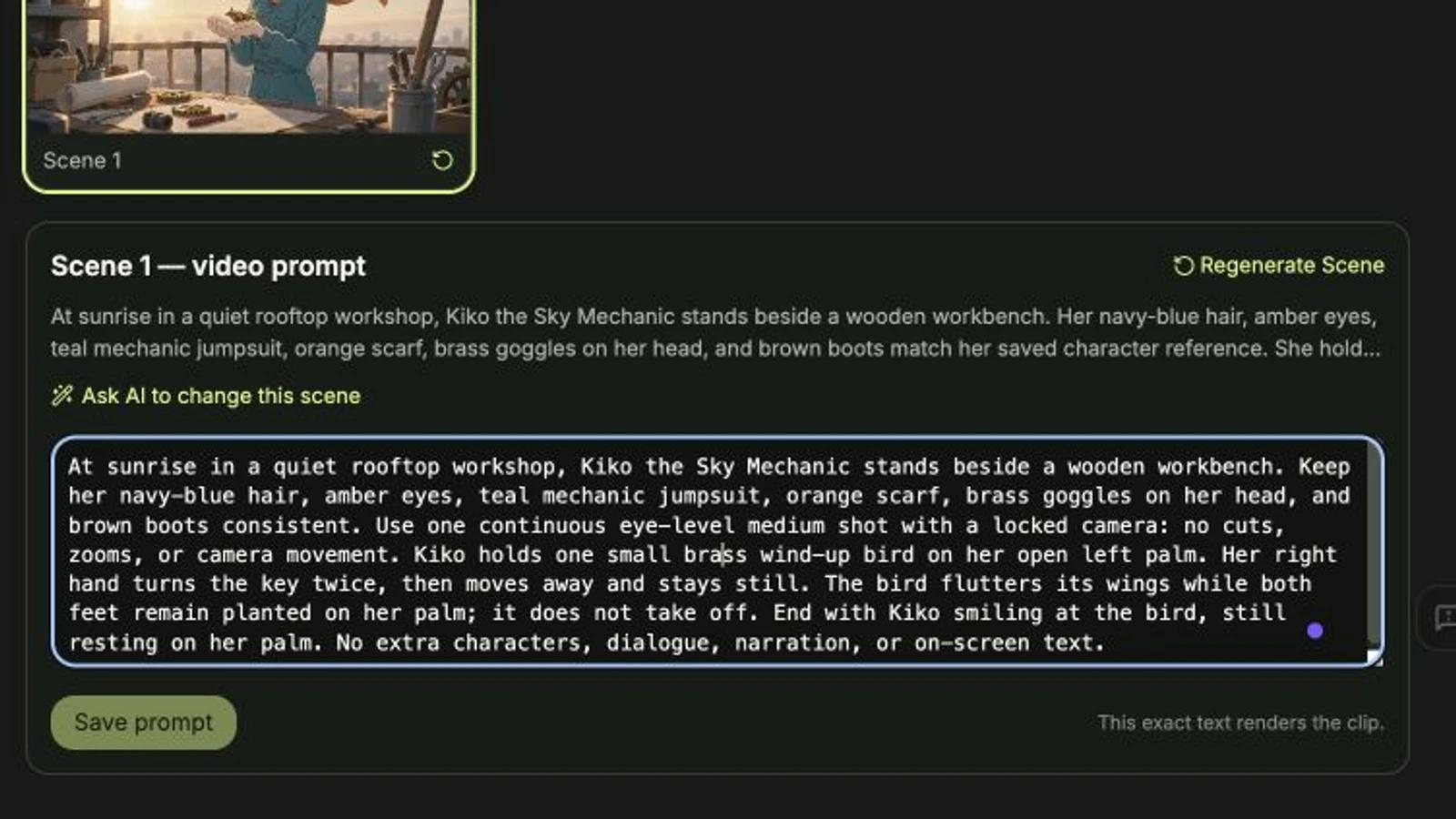
At sunrise in a quiet rooftop workshop, Kiko the Sky Mechanic stands beside a wooden workbench. Keep her navy-blue hair, amber eyes, teal mechanic jumpsuit, orange scarf, brass goggles on her head, and brown boots consistent. Use one continuous eye-level medium shot with a locked camera: no cuts, zooms, or camera movement. Kiko holds one small brass wind-up bird on her open left palm. Her right hand turns the key twice, then moves away and stays still. The bird flutters its wings while both feet remain planted on her palm; it does not take off. End with Kiko smiling at the bird, still resting on her palm. No extra characters, dialogue, narration, or on-screen text.
The revision keeps Kiko's visible identity details, states the camera behavior, puts the hand movement in order, and specifies the final pose. These are requested actions for a future render; saving the words alone does not prove the model will follow them.
Save prompt became enabled and Reset appeared. We did not change the model, aspect-ratio, or seconds-per-shot controls, and no new generation settings were selected for this text-only operation.
Step 3 — Save and wait for the save to finish

We clicked Save prompt. The button temporarily read Saving…. Wait for that state to finish before leaving or refreshing.
Our first attempt reloaded the page while Saving… was still visible, and the original text returned. We entered the same revision again, clicked Save prompt, and this time waited until the button returned to its disabled state and Reset disappeared. This was a second text-save attempt, not a second video-generation request.
Step 4 — Reload and verify the saved text

We refreshed the page and reopened the prompt field in the same saved story. The complete text still matched our input, including “both feet remain planted on her palm” and “No extra characters, dialogue, narration, or on-screen text.”
For a wider reading area, we dragged the normal divider between chat and the workspace to the left. This screenshot was taken after reloading at an actual browser viewport of 1440 × 1000.
The visible balance was 827 credits before and 827 after. That is an observed deduction of 0 credits for this run; it is not a price quote for rendering. No new image or video was generated.
Step 5 — Inspect the saved field at a narrow width

We also inspected the saved field at an actual 390 × 844 browser viewport. The remembered desktop canvas width initially clipped the workspace. Double-clicking the normal resize divider reset its width and brought the prompt box and Save prompt into view. The prompt box is scrollable and the chat area remains cramped.
This was a narrow-browser inspection of the saved result. We did not submit another edit at that width or test a physical phone. If the editor feels cramped, a wider desktop window is the more practical place to revise a long prompt.
What was completed
The revised Scene 1 video prompt was saved and survived a full reload. The evidence above shows the original field, actual input, settled save state, reopened desktop result, and narrow-screen inspection.
To find your own saved result, return to Create, sign in, open the same story from history, and inspect its video-prompt field. There is no public share page for this private text edit; the screenshots here are its publicly viewable evidence.
The existing clip is still a pre-existing asset. Rendering the revised instructions and evaluating camera motion, character consistency, audio, and the ending would be a separate workflow. This guide verifies prompt editing and persistence only.
A first like from an active subscriber gives a community author 1 credit. Likes are permanent; self-likes and repeat rewards are excluded.