
Create and save an item reference in an existing anime project
Add a brass wind-up bird through Characters → Add → New → Item, inspect the generated reference, and reopen the same project to confirm it was saved. Includes the exact input, one-credit result, and mobile inspection.
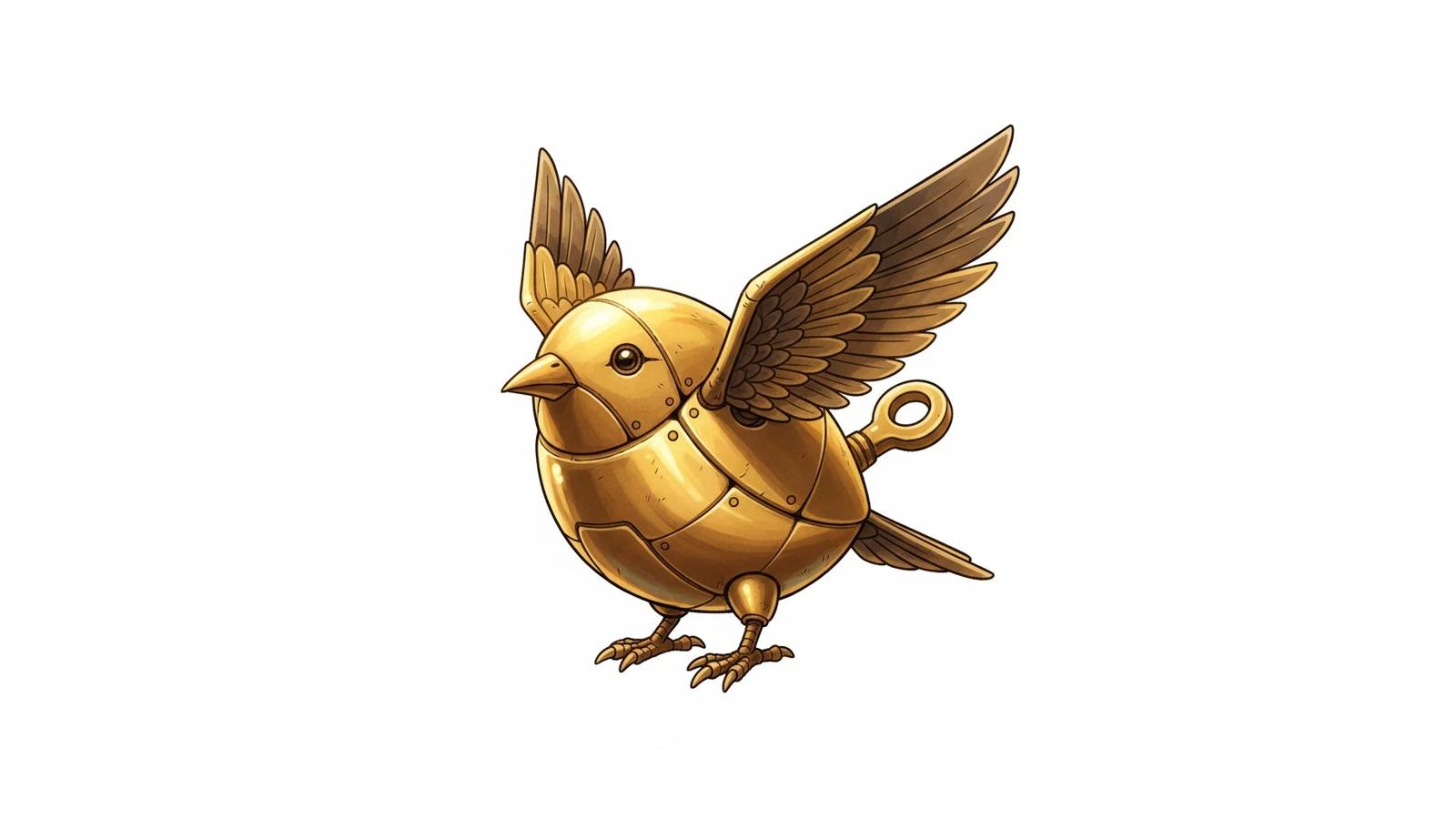
What you will make
Create one named Item reference inside an existing C2Anime story, then reopen the project to check that its image and description were saved. This walkthrough creates a small brass wind-up bird. It does not regenerate a scene or change the project's existing video.
The work was completed in the live product on September 21, 2026, continuing an attempted automatic asset scan from September 20.
Before you start
Sign in at C2Anime Create and open your story using Show story history. Our starting project, Kiko and the Brass Bird, already contained a saved Kiko character and one rendered scene from an earlier session. Those are pre-existing materials, not new results from this tutorial. The story uses Japanese Anime style.

Our success check was small: one new item image, saved with its name, description and Item type, and still present after reopening the same project.
Step 1 — Open the manual item form
In the story workspace, select Characters, click Add, and choose New in the Select Characters dialog. Then select Item. Despite the dialog's name, it also offers Location and Item types.

We used this manual route after Add missing assets returned “Nothing missing” twice while the project still had only Kiko's reference. No further automatic scan was submitted. If a scan says there is nothing to add, inspect your assets before retrying; the manual form lets you specify the missing object directly.
Step 2 — Name the object and describe its appearance
The exact name entered was Brass Wind-up Bird. This was the exact description:
A small palm-sized brass wind-up bird for Kiko’s rooftop workshop. Rounded golden brass body, layered metal feather wings, a short pointed beak, two tiny mechanical feet, and a clearly visible winding key on its back. Full object in three-quarter view, wings slightly raised, simple pale sky-blue background. Clean Japanese anime linework and cel shading. One object only, no character, no hands, no text.
No reference photo or sketch was uploaded. The form said that its reference image would be drawn in the anime's style for 1 credit. It did not offer a separate model, image aspect ratio, or image count setting, and its internal generation prompt was not visible. The video model and duration controls behind the dialog were not settings for this item creation.
Step 3 — Click Create once and wait for the image
Click Create. The button changed to Creating…, and the input fields became disabled.

In this run the dialog closed automatically, and the new item appeared in the project's Characters list. We selected Brass Wind-up Bird and saw Regenerating image… until the reference arrived. There was no additional Confirm click in this new-item path. We waited for this one job rather than submitting again.
Step 4 — Inspect the result, then reopen the project

The result is a golden mechanical bird with layered metal wings, two feet and a visible winding key. The full object is in frame, with no person, hands or text. Two details differ from the request: the background is near white rather than pale sky blue, and the wings are raised higher than “slightly.” We accepted those differences for this prop-reference exercise and did not submit a correction.
We refreshed the project, also opened the same saved session in a separate browser tab, returned to Characters, and selected Brass Wind-up Bird. Its image, name, original description, Item type and Species: object remained present.

The editor also displayed the generic label Supporting Character on the item card. We checked the selected Item type and Species: object rather than treating that label as a type change.
The visible account balance went from 829 to 828 credits, matching the one-credit notice. This is the observed cost for this run, not a promise about future pricing.
Step 5 — Find and inspect your item later
Return to Create, open your saved story through Show story history, select Characters, and choose the item's name. This project editor requires sign-in; there is no public item-detail page demonstrated in this walkthrough. The image and saved-state screenshot above are public evidence of our result.
At a real browser viewport of 390 × 844, we could inspect the saved item and open its image preview by clicking the thumbnail.

The preview displayed the full image. The surrounding creation workspace remained cramped: the item name was truncated and chat controls overlapped part of the panel. Desktop inspection at 1440 × 1000 also showed overlapping video controls in a narrow pane. We did not test submitting generation from mobile or using a physical phone.
What this verifies
One new prop reference was created through the normal UI, saved in the existing project, and reopened successfully. No scene or video was regenerated, so this tutorial makes no claim that the new reference has changed the existing animation. Use this workflow when your immediate goal is to add and keep a specific object reference in your project's asset list.
A first like from an active subscriber gives a community author 1 credit. Likes are permanent; self-likes and repeat rewards are excluded.