
Edit and save a scene description in C2Anime
Revise one saved scene through the Scenes editor, check that the exact text survives reopening, and recover a clipped editor at a narrow browser width.
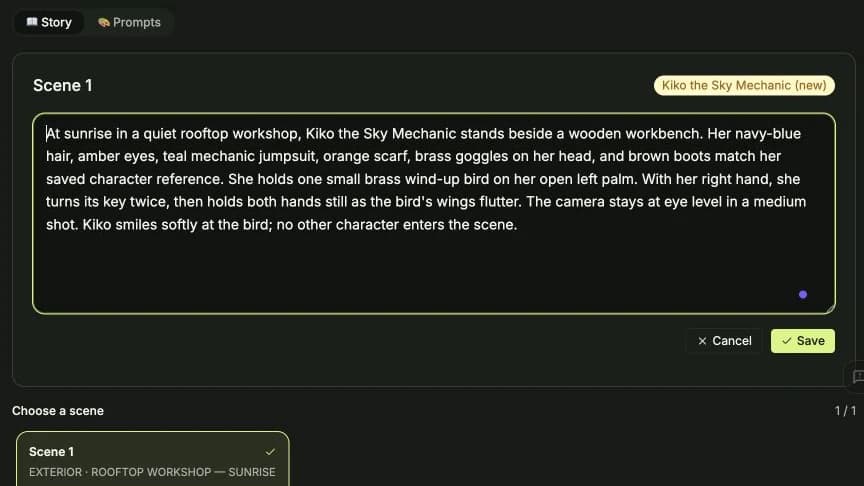
A small scene revision can make an action easier to understand before you spend time rendering it. This walkthrough edits one saved scene description in C2Anime, saves the change, and reopens the same story to check that the text persisted.
The example uses Kiko and the Brass Bird, an existing one-scene story created on September 15, 2026. Its character reference and video are prerequisite assets. The work shown here was performed on September 16. No new image or video was generated for this tutorial, and the older video visible in the screenshots is not a preview of the revised description.
Before you start
Sign in to C2Anime Create with an account that already has a saved story containing a scene. Our example came from the saved-character walkthrough. You can follow these editing steps with your own story; the example's private editing session is not a public template.
Step 1 — Open the story and its scene text

Open Create, expand Show story history, and select your saved story. We used Kiko and the Brass Bird. Choose Scenes, keep the Story view selected, select Scene 1, and click Edit on its card. If generation controls occupy the top of the workspace, scroll down to the scene card.
The existing scene was labeled EXTERIOR · ROOFTOP WORKSHOP — SUNRISE, MEDIUM SHOT, and 10S. These were existing plan labels, not settings selected during this edit. We did not change the scene count, timing, style, aspect ratio, or model.
The original description was:
The first light of dawn spills over a quiet rooftop workshop cluttered with gears, tools, and half-built flying machines. Kiko the Sky Mechanic stands alone, her navy-blue hair tousled by a soft breeze, amber eyes warm. She wears her teal mechanic jumpsuit, orange scarf, brass goggles pushed up on her head, and brown boots. In her open palm rests a small brass wind-up bird, its metal wings folded. She smiles down at it, then gently winds the key on its back. The bird's wings flutter to life, and it hops once in her hand. Kiko's smile widens as she watches it, the sunrise glinting off its polished brass feathers.
Step 2 — Replace the description with a specific action

We replaced the text directly in the scene card. This was the exact saved input:
At sunrise in a quiet rooftop workshop, Kiko the Sky Mechanic stands beside a wooden workbench. Her navy-blue hair, amber eyes, teal mechanic jumpsuit, orange scarf, brass goggles on her head, and brown boots match her saved character reference. She holds one small brass wind-up bird on her open left palm. With her right hand, she turns its key twice, then holds both hands still as the bird's wings flutter. The camera stays at eye level in a medium shot. Kiko smiles softly at the bird; no other character enters the scene.
The revision specifies which hand holds the bird, which hand turns the key, how many turns happen, and the intended framing. It retains the character's appearance and the rooftop setting. These are text instructions; this walkthrough does not claim that a newly rendered video obeyed them.
Step 3 — Save the scene

Click Save inside the scene card. During the request, the editing controls were temporarily disabled. After saving, the editor closed and the revised paragraph appeared in the scene card with Edit available again.
We used the scene card's Save action. No generation or stitching action was needed to save this text revision.
Step 4 — Reopen and check persistence

Reload the page, wait for the story to restore, return to Scenes → Story, and click Edit again. We compared the entire reopened field with the submitted text: it matched exactly, including the left-palm instruction and the two turns of the key. We then used Cancel to close this inspection without making another edit.
After reopening, the Your Video panel's video-prompt field also displayed this revised paragraph. The older clip was still present. Saving text is not evidence that a clip has been regenerated; review the current prompt before a future render, and keep a copy of any detailed prompt you want to preserve.
Step 5 — Check the editor on a narrow screen

We checked the reopened editor in Chrome at 390 × 844. A remembered wide desktop panel initially pushed the field and Save button beyond the right edge. Ordinary horizontal scrolling did not expose them.
The divider between chat and the story workspace has a Drag to resize · double-click to reset control. Double-clicking that divider reset the panel width; the editor and Save button then fitted inside the viewport. The saved text was still intact. We opened and cancelled the mobile editor without submitting another modification.
This recovery was tested in a browser with a narrow viewport; a physical phone's double-tap behavior was not tested. The adjacent chat area remained cramped, and the step tabs used compact unlabeled circles. Desktop is the clearer workspace for this operation.
Result and cost
The result is a saved revision to Scene 1 of the existing story. Return through Create, open story history, and select your own saved story to find its editable text. Sign-in is required. There is no public share page for this private scene-text edit; the screenshots above show the actual input, saved card, and reopened editor.
The visible balance was 829 credits before and after the edit: an observed difference of 0 credits. This observation applies to the text edit in this run, not to future generation costs. No plan or credit pack was purchased.
Desktop save and persistence were verified at 1440 × 1000. The mobile editor was inspected at 390 × 844, including the recovery described above. Rendering the revised scene, physical-phone interaction, and audio playback were outside this tutorial's scope. Screenshots were cropped from real product captures to omit unrelated account areas; the cover is a crop of the reopened scene editor.
A first like from an active subscriber gives a community author 1 credit. Likes are permanent; self-likes and repeat rewards are excluded.