
Edit and save a character’s appearance and clothing
Fill in a saved character’s Appearance and Clothing fields, wait for Save to finish, and reopen them after a reload. Includes exact inputs, zero observed credit deduction and a narrow-screen workaround.
What you will do
Update a saved character’s Appearance and Clothing text in the C2Anime story workspace, then reload and reopen the editor to check that both fields persisted.
This September 26, 2026 walkthrough uses Kiko the Sky Mechanic in our existing Kiko and the Brass Bird story. The portrait, brass bird, rooftop reference and finished clip are pre-existing assets. The crimson scarf portrait comes from our earlier image-edit walkthrough. Today’s result is saved character text; no image or video was generated.
Before you start
Sign in at Create and have a saved story containing a character. Open Show story history, choose your story, then select Characters in the workspace and select the character.
Our starting character already had a portrait, but its Appearance and Clothing fields were empty. This is a useful place to write down the identity and outfit details you want to keep together with that reference.
The editor is private to your account. There is no public share page for this text-edit result; use your own story history to find it again. The screenshots below are public evidence from this run.
Step 1 — Open the character’s text editor

Click Edit beside the character’s name. This opens Name, Appearance and Clothing. The separate portrait-edit button opens a different workflow. Keep the character’s name unchanged if you only need to revise its description.
In this run, the name stayed Kiko the Sky Mechanic and the type stayed Character. We did not select an image model, change a style, or start a render.
Step 2 — Enter the actual appearance and outfit details

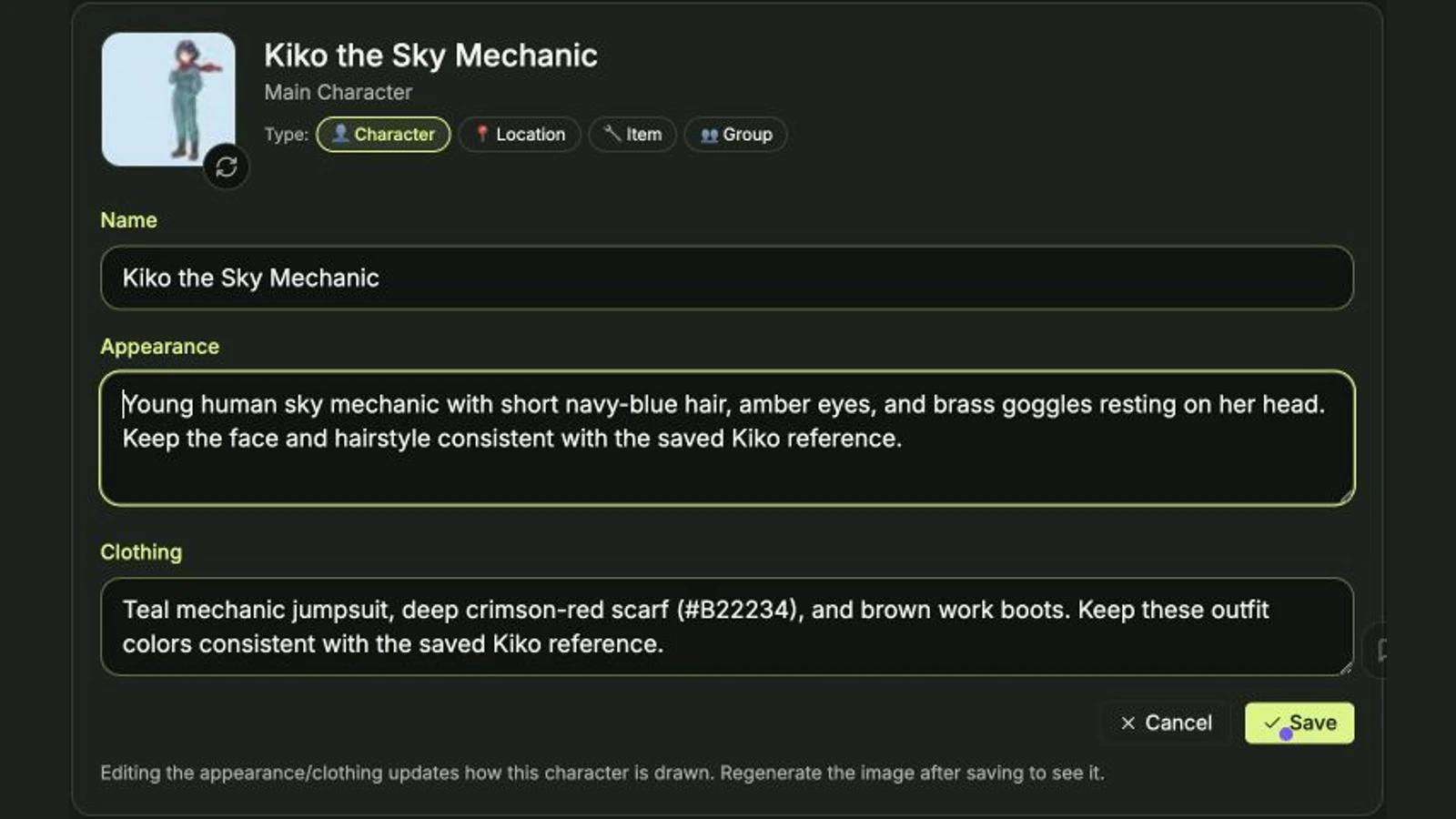
We entered the following exact text in Appearance:
Young human sky mechanic with short navy-blue hair, amber eyes, and brass goggles resting on her head. Keep the face and hairstyle consistent with the saved Kiko reference.
And this exact text in Clothing:
Teal mechanic jumpsuit, deep crimson-red scarf (#B22234), and brown work boots. Keep these outfit colors consistent with the saved Kiko reference.
Appearance records face, hair, eyes and head accessories. Clothing records the outfit and colors. Here the crimson scarf matches the portrait already saved before this run. Saving this text does not prove that a later render will reproduce the exact hexadecimal color.
Step 3 — Save and wait for the editor to close

Click Save once. The buttons briefly became disabled while saving. We waited until the form closed and the character card displayed the two descriptions before refreshing the page.
The account showed 824 credits before and 824 after the operation and reload: zero observed credit deduction. No paid generation was submitted.
Step 4 — Reload and reopen to verify the result

Reload the page, return to Characters, select the same character and click Edit again. In our run, Name, Appearance and Clothing matched the submitted text exactly. We widened the workspace with its divider so the full text was easier to inspect, then used Cancel to close this read-only inspection.
The editor says to regenerate the image after saving if you want to see the description reflected in a new picture. We stopped at saved settings. The existing scene description and video prompt still contained their earlier orange-scarf wording; this edit did not rewrite them. Review those separate fields before any future render. Changes to the separate Character Library entry were not tested.
Step 5 — Check the saved fields at a narrow width

At an actual 390 × 844 browser viewport, the workspace initially retained a wide desktop canvas and clipped the editor. Double-clicking the divider to reset its width, closing and reopening Edit, and scrolling the workspace brought both fields and Save/Cancel into view. The textareas scroll internally; the left chat area remains cramped.
The exact saved values matched at this width. This was a desktop-browser responsive check of reopening saved data, not a physical-phone test or a separate mobile save submission. The desktop save and reload were tested at 1440 × 1000.
What this verifies
The character text was edited through the live product, saved, and recovered after a full reload. The screenshots show the real blank starting fields, actual input, saved card and reopened editor. They do not demonstrate a newly generated portrait, changed animation, or automatic synchronization of every prompt in the story.
To repeat the task, start from your own saved story in Create, edit one character, wait for Save to finish, and reopen it before moving on to any generation.
A first like from an active subscriber gives a community author 1 credit. Likes are permanent; self-likes and repeat rewards are excluded.